Olliter Manuals

OL-Master Database Restore Tool
Note
This tool is only available with OL-Master software version 2.2.0.5 or later
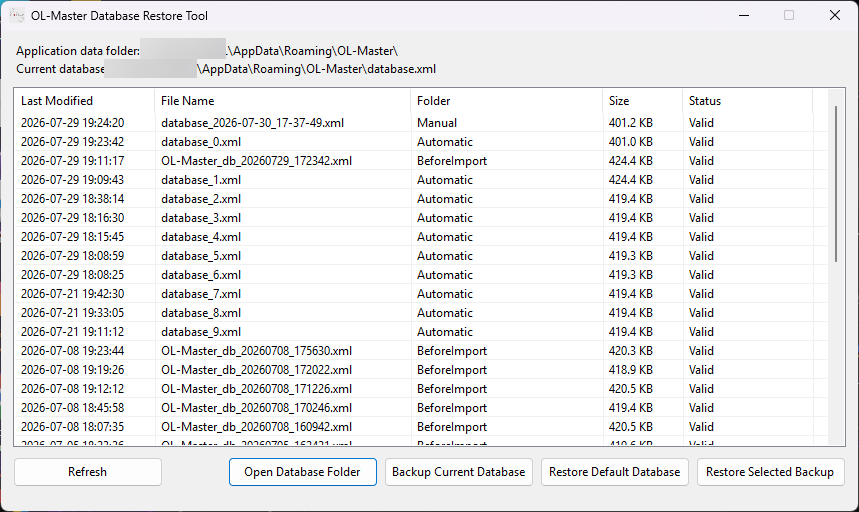
This tool allows you to restore the database of the OL-Master software in case of corruption or accidental deletion. It is important to note that this tool should be used with caution, as restoring a database will overwrite any existing data.
Introduction
OL-Master software automatically creates backups of the database at regular intervals. These backups are stored in a specific directory on the device, and can be used to restore the database in case of corruption or accidental deletion.
These folders are:
%AppData%\OL-Master\Backups\Automaticfor automatic backups created by the software right before closing it.%AppData%\OL-Master\Backups\Manualfor manual backups created by the user using theBackup Current Databasebutton in the OL-Master Database Restore Tool.%AppData%\OL-Master\Backups\BeforeImportfor backups created by the software before importing a new database.
For the Automatic backups, the software keeps a maximum of 10 backups. When a new backup is created, the oldest backup is deleted to make room for the new one. Manual backups are not subject to this limit and can be created as needed.
Usage
- From the Start menu, open the
OL-Master Database Restore Tool.- The list of available backups will be displayed. This list includes automatic backups created by the software, as well as any manual backups that you have created.
- Select the backup you wish to restore from the list.
- Backups are sorted by date, with the most recent backups appearing at the top of the list. You can also use the search function to find a specific backup by name or date.
- Each backup is flagged with a status indicator that shows whether the backup is valid or corrupted. Only valid backups can be restored.
- Click on the
Restore Selected Databasebutton to begin the restoration process.
Additional features
Manual backup
This tool allows you to manually backup the current database by clicking on the Backup Current Database button. This will create a new backup of the current database, which can be restored later if needed.
Manual backups are stored in the %AppData%\OL-Master\Backups\Manual directory by default, this location cannot be changed. It is recommended to periodically copy these backups to an external storage device for safekeeping.
Restoring default database
At every installation of the OL-Master software, a default database is created. This database contains the default settings and configurations for the software. If you wish to restore the default database, you can do so by clicking on the Restore Default Database button.