Olliter Manuals

OL-Master - Additional features
Introduction
The OL-Master software can be optionally configured to use external services like clusters or EIBI, these services might require an internet connection to work or additional configurations in the third-party software.
Warning
Links to, or the usage of, third-party websites, services, plugins, or tools do not constitute an endorsement by Olliter SAgl. of any product, service, information, or disclaimer presented therein. Olliter SAgl. bears no responsibility for any inaccuracies, omissions, or misrepresentations found in the information provided by these external services, and shall not be held liable for any loss, damage, or issues arising from the use of such third-party offerings. These third-party services are optional and external to Olliter SAgl’s control. It is the sole responsibility of the user to independently validate the accuracy, ensure the security, and adapt the implementation or use of any third-party content or tool to meet their specific requirements. As third-party websites and services operate under their own terms of use, privacy policies, and practices, which may differ significantly from those of Olliter SAgl. users are strongly encouraged to carefully review all applicable third-party terms and policies before engaging with or relying on such services.
Warning
Data being transmitted to third-party services or plugins might be unencrypted and could be exposed to security risks during transfer or processing. Olliter SAgl. does not control how third-party services handle, store, or secure your data, and therefore cannot guarantee the confidentiality, integrity, or availability of any information shared with such external tools. Users are solely responsible for assessing the sensitivity of the data they transmit, verifying the security practices of the third-party services they choose to use, and ensuring that any integrations comply with applicable data protection regulations and organizational security requirements. Use of these third-party services is entirely optional and at your own risk. We strongly advise users to take appropriate precautions, including data anonymization, encryption where possible, and reviewing third-party privacy and security policies in detail before transmitting any data.
EIBI
The EIBI service is a database of shortwave broadcast stations, it can be used to tune the receiver to a specific station, or to display the station name and frequency on the receiver window.
The list of broadcast is retrieved from the provider configured in Setup > EiBi and constantly updated. A set of filters can be used to sort or search the list of stations.
The broadcast stations that match the current frequency are highlighted in green in the EiBi window.
When tuning a frequency on the VFO of any receiver, the matching broadcast station will be displayed in the spectrum window.
Clusters
The cluster service is a database of amateur radio stations, it can be used to tune the receiver to a specific station, or to display the station name and frequency on the receiver window.
If the option is enabled in OL-Master settings, the list of DX stations will be listed in the spectrum window. Double clicking any callsign will tune the receiver to that station.
The cluster can be set to start automatically when running the OL-Master software and the first cluster configured by the user in the list of remote servers will be connected.
CW Keyer
The CW Keyer feature allows you to send Morse code using a keyboard. The keyer can be configured to use different keying modes, speeds, and other parameters.
User can configure multiple messages to be sent by pressing keys from F1 to F12 or by combining the SHIFT key with these function keys, for a total of 24 usable messages.
The CW Keyer also supports special syntax for sending variable fields, such as:
#C- The callsign of the DX station as specified in the dedicated field#R- A report as indicated in the dedicated field (like the signal report or a custom contest exchange like CQ zone, region, etc)#N- The name of the DX operator as specified in the dedicated field#- A progressive number that can be incremented from the CW Keyer window (like the progressive number in a CW contest)
Tip
If you need to send arbitrary messages using the CW Keyer, you can use the MQTT commands feature as described below. This allows for more complex messaging scenarios.
MQTT
The OL-Master software can be configured to send telemetry data to an MQTT broker, this data can be used to monitor the transceiver remotely, or to integrate the transceiver with other software or keypads.
MQTT settings are available in the Setup > COM > MQTT menu of the OL-Master software.
Warning
Starting from OL-Master version 1.1.0.4 the internal MQTT broker of OL-Master is now deprecated. The MQTT feature requires an external MQTT broker to be available. An example of a free MQTT broker is Eclipse Mosquitto.
Example of Eclipse Mosquitto configuration
The installation instructions about the Eclipse Mosquitto broker can be found on the official website: Mosquitto Documentation.
The setup procedure consists of:
- Downloading the Eclipse Mosquitto broker installer
- Installing the Eclipse Mosquitto broker
- Configuring the Eclipse Mosquitto broker
- Running the Eclipse Mosquitto broker
- The broker is automatically installed as a Windows service with no need of manual startup at every reboot
Below is an example of the mosquitto.conf file configuration (which is located by default at C:\Program Files\Mosquitto\mosquitto.conf) for the MQTT broker to allow both MQTT on port 1883 and MQTT over WebSocket on port 9001 with no authentication:
Tip
Make sure to backup the original mosquitto.conf file before making any changes.
Tip
Restart the Mosquitto service from the Windows Services management console after making any changes to the configuration file or reboot the machine to load the new configuration.
Sample mosquitto.conf file:
# MQTT protocol
listener 1883
protocol mqtt
# WebSocket protocol
listener 9001
protocol websockets
# Authentication should be disabled
# only on local protected networks
allow_anonymous true
Using these settings, OL-Master (and any third party software needing to interact with it) should be set as follows:
Broker address:localhost(or the IP address of the machine where the broker is running)Broker port:9001Use WebSocket: true (checked)Use authentication: false (unchecked)
MQTT Telemetry data
The telemetry data that is sent to the MQTT broker is a JSON object that contains the following fields:
Topic: receivers/get/[x] where [x] is the receiver number, ranging from 1 to 4.
{
  "software_id": "OL-Master_PCNAME", // Read only unique identifier of the software instance
  "txpower": "0",                    // Read only current TX power in Watts
  "monitor_vol": "30",               // Read only current monitor volume (0 to 100)
  "band": "B10M",                    // Read and write current band
  "swr": "1",                        // Read only current SWR value
  "master_vol": "50",                // Read only current master volume (0 to 100)
  "temperature": "0.0",              // Read only current temperature in Celsius
  "current": "0.0",                  // Read only current consumption in Amperes
  "samplerate": "192000",            // Read and write current sample rate in Hz (throttled to one update every 30 seconds)
  "spectrum_center": "28.131262",    // Read only center frequency of the spectrum in MHz (expecially when CTUN is used)
  "receiver_a":                      // Read and write settings of the main receiver
  {
    "active": "False",               // Read and write if the receiver is active
    "frequency": "28.500000",        // Read and write current frequency in MHz
    "mode": "USB",                   // Read and write current mode
    "filterlow": "250",              // Read and write current low filter in Hz
    "filterhigh": "2650",            // Read and write current high filter in Hz
    "volume": "30",                  // Read and write current volume (0 to 100)
    "squelch": "0",                  // Read and write current squelch level (0 to 100)
    "mox": "False",                  // Read and write if the MOX is active (transmitting)
    "txvfo": "False",                // Read and write if the VFO is used for transmission
    "signal": "-170.0"               // Read only current signal level in dBm
  },
  "receiver_b":                      // Read and write settings of the sub receiver
  {
    "active": "True",                // Read and write if the receiver is active
    "frequency": "28.550000",        // Read and write current frequency in MHz
    "mode": "USB",                   // Read and write current mode
    "filterlow": "250",              // Read and write current low filter in Hz
    "filterhigh": "2650",            // Read and write current high filter in Hz
    "volume": "31",                  // Read and write current volume (0 to 100)
    "squelch": "0",                  // Read and write current squelch level (0 to 100)
    "mox": "False",                  // Read and write if the MOX is active (transmitting)
    "txvfo": "False",                // Read and write if the VFO is used for transmission
    "signal": "-170.0"               // Read only current signal level in dBm
  }
}
Telemetry configuration
The telemetry data is sent to the MQTT broker at each interval as configured in the Setup > COM > MQTT menu of the OL-Master software.
Additional notes about the telemetry data
- The
monitor_volandmaster_volfields were expressed as a float value between 0 and 1 in OL-Master version 1.x, starting from version 2.0.0.0 they are expressed as an integer value between 0 and 100. - Please note the
software_idfield is a unique identifier for each OL-Master instance, it is recommended to use this field to distinguish between different transceivers when using multiple instances connected to the same MQTT broker. When sending a command, the software_id must match the one of the target OL-Master instance or the command will be ignored. - The telemetry data is read-only and cannot be used to control the transceiver.
MQTT Receiver control
The receiver commands are sent to the MQTT broker using the receivers/set/[x] topic, where [x] is the receiver number, ranging from 1 to 4.
The JSON payload follows the same structure as the telemetry data, but some the fields are read-write and can be used to control the transceiver.
MQTT Controls examples
Note
The target OL-Master instance is identified by the software_id field, make sure to set this field correctly when sending commands. This value should match the one received in the telemetry data for the specific instance.
Changing the band on the first receiver
Topic: receivers/set/1
Payload:
{
  "software_id": "OL-Master_PCNAME",
  "txpower": null,
  "monitor_vol": null,
  "band": "B30M",
  "swr": null,
  "master_vol": null,
  "receiver_a": null,
  "receiver_b": null
}
Setting the frequency of the first receiver (main)
Topic: receivers/set/1
Payload:
{
  "software_id": "OL-Master_PCNAME",
  "txpower": null,
  "monitor_vol": null,
  "band": "B30M",
  "swr": null,
  "master_vol": null,
  "receiver_a": {
    "active": "True",
    "frequency": "10.100000",
    "mode": "LSB",
    "filterlow": "-2700",
    "filterhigh": "-300",
    "volume": "0",
    "squelch": "0",
    "mox": "False",
    "txvfo": "False",
    "signal": "-170.0"
  },
  "receiver_b": null
}
Changing the band on the third receiver
Topic: receivers/set/3
Payload:
{
  "software_id": "OL-Master_PCNAME",
  "txpower": null,
  "monitor_vol": null,
  "band": "B30M",
  "swr": null,
  "master_vol": null,
  "receiver_a": null,
  "receiver_b": null
}
Changing the sample rate of the third receiver
Topic: receivers/set/3
Payload:
{
  "software_id": "OL-Master_PCNAME",
  "txpower": null,
  "monitor_vol": null,
  "band": null,
  "swr": null,
  "master_vol": null,
  "samplerate": "192000",
  "receiver_a": null,
  "receiver_b": null
}
Set the frequency of the second receiver (sub)
Topic: receivers/set/2
Payload:
{
  "software_id": "OL-Master_PCNAME",
  "txpower": null,
  "monitor_vol": null,
  "band": null,
  "swr": null,
  "master_vol": null,
  "receiver_a": null,
  "receiver_b": {
    "active": "True",
    "frequency": "14.200000",
    "mode": "USB",
    "filterlow": "-2700",
    "filterhigh": "-300",
    "volume": "0",
    "squelch": "0",
    "mox": "False",
    "txvfo": "False",
    "signal": "-170.0"
  }
}
Set the master volume to 75%
Topic: receivers/set/1 (any receiver can be used)
Payload:
{
  "software_id": "OL-Master_PCNAME",
  "txpower": null,
  "monitor_vol": null,
  "band": null,
  "swr": null,
  "master_vol": "75",
  "receiver_a": null,
  "receiver_b": null
}
Set the monitor volume to 50%
Topic: receivers/set/1 (any receiver can be used)
Payload:
{
  "software_id": "OL-Master_PCNAME",
  "txpower": null,
  "monitor_vol": "50",
  "band": null,
  "swr": null,
  "master_vol": null,
  "receiver_a": null,
  "receiver_b": null
}
Set the TX power to 80%
Topic: receivers/set/1 (any receiver can be used)
Payload:
{
  "software_id": "OL-Master_PCNAME",
  "txpower": "80",
  "monitor_vol": null,
  "band": null,
  "swr": null,
  "master_vol": null,
  "receiver_a": null,
  "receiver_b": null
}
Change the filter of the second receiver (main)
Topic: receivers/set/2
Payload:
{
  "software_id": "OL-Master_PCNAME",
  "txpower": null,
  "monitor_vol": null,
  "band": null,
  "swr": null,
  "master_vol": null,
  "receiver_a": {
    "active": "True",
    "frequency": null,
    "mode": null,
    "filterlow": "-1500",
    "filterhigh": "-500",
    "volume": null,
    "squelch": null,
    "mox": null,
    "txvfo": null,
    "signal": null
  },
  "receiver_b": null
}
MQTT Receivers commands
The following commands can be sent to the MQTT broker to send quick commands to the transceiver.
The topic is receivers/command/[x] where [x] is the receiver number, ranging from 1 to 4.
Supported commands:
enable- Enable or disable the receivervolume- Adjust the volume of the receivermonitorvolume- Adjust the monitor volume of the receivermastervolume- Adjust the speakers volumemox- Toggle the MOXfrequency- Adjust the frequency of the receivermode- Adjust the mode of the receiverkeyer- Control the transceiver CW keyervoicekeyer- Control the transceiver voice keyer
Supported actions:
toggle- Toggle the command+- Increase the value-- Decrease the value
The keyer, also supports the following actions:
sendmem- Send a memory from the Keyer listsendtext- Send arbitrary text
Note
The MQTT keyer commands feature was introduced with OL-Master version 1.1.0.5
- Maximum length of the text is 100 characters
- The CW Keyer window should be opened before sending commands to the keyer
The voicekeyer, also supports the following actions:
play- Play a previously recorded voice messagestop- Stop the currently playing voice message
Note
The MQTT voice keyer commands feature was introduced with OL-Master version 2.2.0.1
- The voice messages must be recorded first from the OL-Master software before they can be played using this command
The optional subreceiver field can be set to true to control the sub receiver.
The optional value field can be set to the value to increase or decrease. If this parameter is empty, the default value for such command will be used (e.g: the tuning step of the frequency).
MQTT Commands examples
Note
The target OL-Master instance is identified by the software_id field, make sure to set this field correctly when sending commands. This value should match the one received in the telemetry data for the specific instance.
Toggling the first receiver
Topic: receivers/command/1
Payload:
{
  "software_id": "OL-Master_PCNAME",
  "command": "enable",
  "action": "toggle"
}
Increasing the volume of the second receiver
Topic: receivers/command/2
Payload:
{
  "software_id": "OL-Master_PCNAME",
  "command": "volume",
  "subreceiver": "false",
  "action": "+",
  "value": "15"
}
Tip
To increase the volume on the sub receiver, set the subreceiver field to true.
Toggling MOX on the first receiver
Topic: receivers/command/1
Payload:
{
  "software_id": "OL-Master_PCNAME",
  "command": "mox",
  "action": "toggle",
  "subreceiver": "false"
}
Increasing the monitor volume
Topic: receivers/command/1
Payload:
{
  "software_id": "OL-Master_PCNAME",
  "command": "monitorvolume",
  "action": "+",
  "value": "10",
  "subreceiver": "false"
}
Setting the monitor volume to 60%
Note
This feature requires OL-Master version 2.0.0.8 or later.
Topic: receivers/command/1
Payload:
{
  "software_id": "OL-Master_PCNAME",
  "command": "monitorvolume",
  "action": "",
  "value": "60",
  "subreceiver": "false"
}
Decreasing the master volume
Topic: receivers/command/1
Payload:
{
  "software_id": "OL-Master_PCNAME",
  "command": "mastervolume",
  "action": "-",
  "value": "10",
  "subreceiver": ""
}
Setting the master volume to 35%
Note
This feature requires OL-Master version 2.0.0.8 or later.
Topic: receivers/command/1
Payload:
{
  "software_id": "OL-Master_PCNAME",
  "command": "mastervolume",
  "action": "",
  "value": "35",
  "subreceiver": ""
}
Increasing the frequency of the first receiver (sub)
Topic: receivers/command/1
Payload:
{
  "software_id": "OL-Master_PCNAME",
  "command": "frequency",
  "action": "+",
  "value": "0.1",
 "subreceiver": "true"
}
The frequency is in MHz, to decrease the frequency, set the action field to -.
Setting the frequency of the first receiver
Note
This feature requires OL-Master version 2.0.0.15 or later.
Topic: receivers/command/1
Payload:
{
  "software_id": "OL-Master_PCNAME",
  "command": "frequency",
  "action": "",
  "value": "14.250000",
 "subreceiver": "true"
}
Changing the receiver mode of the third transceiver
Topic: receivers/command/3
Payload:
{
  "software_id": "OL-Master_PCNAME",
  "command": "mode",
  "action": "",
  "value": "USB",
  "subreceiver": ""
}
Allowed values: LSB, USB, DSB, CWL, CWU, AM, SAM, SAML, SAMU, DIGL, DIGU, FM5, FM2, FT, LAST
Sending the message saved in the Keyer list at position 5
Topic: receivers/command/3
Payload:
{
  "software_id": "OL-Master_PCNAME",
  "command": "keyer",
  "action": "sendmem",
  "value": "5",
  "subreceiver": "false"
}
Sending arbitrary text using the keyer
Topic: receivers/command/3
Payload:
{
  "software_id": "OL-Master_PCNAME",
  "command": "keyer",
  "action": "sendtext",
  "value": "Hello World",
  "subreceiver": "false"
}
Playing a recorded voice message
Note
This feature requires OL-Master version 2.2.0.1 or later
Note
The voice message must be recorded first from the OL-Master software. If no message is recorded, nothing will be transmitted.
Topic: receivers/command/1
Payload:
{
  "software_id": "OL-Master_PCNAME",
  "command": "voicekeyer",
  "action": "play",
  "value": "1",
  "subreceiver": "false"
}
Stopping the voice keyer playback
Note
This feature requires OL-Master version 2.2.0.1 or later.
Topic: receivers/command/1
Payload:
{
  "software_id": "OL-Master_PCNAME",
  "command": "voicekeyer",
  "action": "stop",
  "subreceiver": "false"
}
MQTT Panadapter data
The panadapter data can be sent to the MQTT broker using the receivers/panadapter/[x] topic, where [x] is the receiver number, ranging from 1 to 4.
Warning
The panadapter data transfers a significant amount of data and might overload the MQTT broker or the network if the interval is too low. The UDP stream feature should be preferred for this purpose.
Note
The spectrum stream is sent to the MQTT broker in different formats depending on the OL-Master version.
OL-Master before version 1.1.0.20
# pip install paho-mqtt

import base64
import gzip
import json
import paho.mqtt.client as mqtt
from io import BytesIO

# MQTT broker settings
MQTT_BROKER = "localhost"  # Change to your broker address
MQTT_PORT = 9001
MQTT_TOPIC = "receivers/panadapter/1"  # Change index as needed

def on_message(client, userdata, msg):
    # Step 1: Decode base64
    compressed_payload = base64.b64decode(msg.payload)
    # Step 2: Decompress (gzip)
    with gzip.GzipFile(fileobj=BytesIO(compressed_payload)) as f:
        json_payload = f.read().decode('utf-8')
    # Step 3: Parse JSON
    data = json.loads(json_payload)
    # Step 4: Access spectrum data
    spectrum = data.get("data", [])
    print(f"Received {len(spectrum)} spectrum points")
    # Print first 10 values for demonstration
    print(spectrum[:10])

client = mqtt.Client(transport="websockets")
client.on_message = on_message
client.connect(MQTT_BROKER, MQTT_PORT)
client.subscribe(MQTT_TOPIC)
client.loop_forever()
OL-Master after version 1.1.0.20
Starting from OL-Master version 1.1.0.20, the panadapter data format has been updated to a binary stream which includes the minimum and maximum values of the spectrum data. This allows for a more accurate reconstruction of the original floating-point values and a significant improvement in the used bandwidth.
# pip install paho-mqtt numpy matplotlib

import base64
import struct
import numpy as np
import matplotlib.pyplot as plt
import paho.mqtt.client as mqtt
import queue
import threading

MQTT_BROKER = "localhost"  # Change to your broker address
MQTT_TOPIC = "receivers/panadapter/1"

# Queue to pass data from MQTT thread to main thread
data_queue = queue.Queue()

plt.ion()
fig, ax = plt.subplots()
line, = ax.plot([], [])
ax.set_ylim(-150, 0)  # Adjust as needed

def on_message(client, userdata, msg):
    # Decode and decompress
    payload = base64.b64decode(msg.payload)

    # Parse min, max, int16 data
    min_val = struct.unpack('<f', payload[0:4])[0]
    max_val = struct.unpack('<f', payload[4:8])[0]
    int16_data = np.frombuffer(payload[8:], dtype='<i2')

    # Reconstruct floats
    floats = ((int16_data.astype(np.float32) + 32768) / 65535) * (max_val - min_val) + min_val

    # Put data in queue for main thread to process
    data_queue.put(floats)

# Use the latest callback API version
client = mqtt.Client(callback_api_version=mqtt.CallbackAPIVersion.VERSION2)
client.on_message = on_message
client.connect(MQTT_BROKER)
client.subscribe(MQTT_TOPIC)
client.loop_start()

try:
    while True:
        # Check for new data in queue
        try:
            floats = data_queue.get_nowait()
            # Plot
            line.set_xdata(np.arange(len(floats)))
            line.set_ydata(floats)
            ax.set_xlim(0, len(floats))
            plt.draw()
        except queue.Empty:
            pass
        plt.pause(0.01)
except KeyboardInterrupt:
    pass
UDP Stream
Note
This chapter is a work in progress
The OL-Master software can be configured to send the audio and spectrum stream to a remote UDP server, this can be used to record the audio stream or to integrate the transceiver with other software.
UDP Panadapter data
The spectrum stream is sent to the UDP server at each interval as configured in the Setup menu of the OL-Master software.
UDP Panadapter reception example
Note
The spectrum stream is sent to the UDP server in different formats depending on the OL-Master version.
UDP Panadapter data in OL-Master before version 1.1.0.20
The following code is an example of how to receive the spectrum stream using a javascript application to render the spectrum on a canvas.
function initializePanadapterCanvas() {
    window.addEventListener('resize', adjustCanvasSize);
    adjustCanvasSize();
}

function adjustCanvasSize() {
    const canvas = document.getElementById('panadapterCanvas');
    if (canvas == null) {
        return;
    }
    const width = window.innerWidth; // Set width to the width of the viewport
    canvas.width = width; // Update the canvas width
    // Optionally, you can set height dynamically or keep it fixed
    canvas.height = 400; // Set height to a fixed value or adjust dynamically
}

window.drawPanadapter = (spectrumData, gridMin = -160, gridMax = 0) => {
    const canvas = document.getElementById('panadapterCanvas');
    if (canvas == null) {
        return;
    }
    const ctx = canvas.getContext('2d');
    const width = canvas.width;
    const height = canvas.height;
    const yRange = gridMax - gridMin;

    ctx.clearRect(0, 0, width, height); // Clear canvas

    const points = [];
    const slope = spectrumData.length / width; // Adjust this as needed

    for (let i = 0; i < width; i++) {
        // Ensure dataIndex is within bounds
        const dataIndex = Math.floor(i * slope);
        const data = spectrumData[Math.min(dataIndex, spectrumData.length - 1)] || 0;
        const yTemp = Math.ceil((gridMax - data) * height / yRange);
        points.push({ x: i, y: Math.min(yTemp, height) });
    }

    // Draw fill polygon if needed
    if (true) { // Adjust condition if necessary
        ctx.fillStyle = 'rgba(185, 152, 106, 0.5)'; // Adjust color and opacity
        points.push({ x: width, y: height }, { x: 0, y: height });
        ctx.beginPath();
        points.forEach((point, index) => {
            if (index === 0) {
                ctx.moveTo(point.x, point.y);
            } else {
                ctx.lineTo(point.x, point.y);
            }
        });
        ctx.closePath();
        ctx.fill();
    }

    // Draw the spectrum line
    ctx.strokeStyle = '#FFFFFF'; // Line color
    ctx.lineWidth = 2; // Line width
    ctx.beginPath();
    points.forEach((point, index) => {
        if (index === 0) {
            ctx.moveTo(point.x, point.y);
        } else {
            ctx.lineTo(point.x, point.y);
        }
    });
    ctx.stroke();

    ctx.strokeStyle = '#00000040';
    ctx.rect(width / 2, 0, 1, height);
    ctx.stroke();
};
UDP Panadapter data in OL-Master version 1.1.0.20 or later
Starting from OL-Master version 1.1.0.20, the spectrum stream format has been updated to a binary stream which includes the minimum and maximum values of the spectrum data. This allows for a more accurate reconstruction of the original floating-point values and a significant improvement in the used bandwidth.
# pip install numpy matplotlib

import socket
import struct
import matplotlib.pyplot as plt
import numpy as np

UDP_IP = "0.0.0.0"
UDP_PORT = 50500  # Set to your UDP port

sock = socket.socket(socket.AF_INET, socket.SOCK_DGRAM)
sock.bind((UDP_IP, UDP_PORT))

plt.ion()
fig, ax = plt.subplots()
line, = ax.plot([], [])
ax.set_ylim(-150, 0)  # Adjust as needed

def parse_packet(data):
    # Find the end of the label (last '|')
    label_end = data.find(b'|', data.find(b'|', data.find(b'|')+1)+1) + 1
    min_val = struct.unpack('<f', data[label_end:label_end+4])[0]
    max_val = struct.unpack('<f', data[label_end+4:label_end+8])[0]
    buffer = data[label_end+8:]
    buffer = buffer[:len(buffer) - (len(buffer) % 2)]  # Ensure buffer size is a multiple of 2
    int16_data = np.frombuffer(buffer, dtype='<i2')
    # Reconstruct floats
    floats = ((int16_data.astype(np.float32) + 32768) / 65535) * (max_val - min_val) + min_val
    return floats

while True:
    data, addr = sock.recvfrom(65536)
    floats = parse_packet(data)
    line.set_xdata(np.arange(len(floats)))
    line.set_ydata(floats)
    ax.set_xlim(0, len(floats))
    plt.pause(0.01)
UDP Audio stream
UDP audio stream can be used to receive and transmit audio to and from OL-Master, this can be used to record the audio stream or to integrate the transceiver with other software.
UDP Audio reception example
To enable audio stream, go to the Setup > COM > UDP menu of the OL-Master software and enable the audio stream.
The following Python code is an example of how to receive the audio stream using the sounddevice library.
import socket
import pyaudio
import numpy as np

# Configurazione UDP
UDP_IP = "127.0.0.1"  # Ascolta su tutte le interfacce
UDP_PORT = 5000    # Porta UDP
BUFFER_SIZE = 1024  # Dimensione del pacchetto UDP

# Configurazione audio
FORMAT = pyaudio.paFloat32  # Supponendo che i dati siano float32
CHANNELS = 2                # Audio mono
RATE = 48000                # Frequenza di campionamento

# Configura PyAudio
p = pyaudio.PyAudio()
stream = p.open(format=FORMAT,
                channels=CHANNELS,
                rate=RATE,
                output=True)

# Configura socket UDP
sock = socket.socket(socket.AF_INET, socket.SOCK_DGRAM)
sock.bind((UDP_IP, UDP_PORT))
print(f"Ricezione audio su {UDP_IP}:{UDP_PORT}...")

try:
    while True:
        data, addr = sock.recvfrom(BUFFER_SIZE)

        # Decodifica i dati (supponendo double -> float)
        audio_data = np.frombuffer(data, dtype=np.float64).astype(np.float32)

        # Riproduci il buffer
        stream.write(audio_data.tobytes())
except KeyboardInterrupt:
    print("Terminato.")
finally:
    stream.stop_stream()
    stream.close()
    p.terminate()
    sock.close()
UDP Audio transmission example
Note
This feature requires OL-Master version 2.2.0.17
To enable audio stream, go to the Setup > COM > UDP menu of the OL-Master software and enable UDP transmit audio input.
Warning
The UDP audio stream is an unauthenticated and unencrypted stream, it is recommended to use it only on trusted networks.
The following Python code is an example of how to send a 48 kHz WAV file to the OL-Master UDP transmit audio input.
#!/usr/bin/env python3
"""Stream a 48 kHz WAV file to OL-Master's UDP transmit audio input.

Usage:   python udp_tx_audio_send.py voice.wav [host] [port]
Convert: ffmpeg -i input.mp3 -ar 48000 -ac 1 -c:a pcm_s16le voice.wav
"""

import socket
import struct
import sys
import time
import wave

MAGIC = b"OLTA"           # read back by the receiver as the LE u32 0x41544C4F
VERSION = 1
RATE = 48000
FRAMES_PER_PACKET = 480   # 10 ms; the receiver rejects anything over 1024 frames


def main(path, host="127.0.0.1", port=5010):
    with wave.open(path, "rb") as wav:
        channels = wav.getnchannels()
        if wav.getframerate() != RATE or wav.getsampwidth() != 2 or channels not in (1, 2):
            sys.exit(
                f"need a {RATE} Hz 16-bit mono or stereo WAV, got "
                f"{wav.getframerate()} Hz {wav.getsampwidth() * 8}-bit {channels}ch"
            )

        sock = socket.socket(socket.AF_INET, socket.SOCK_DGRAM)
        period = FRAMES_PER_PACKET / RATE
        deadline = time.perf_counter()
        seq = 0

        while True:
            # wave already hands back interleaved little-endian s16, which is
            # exactly the payload format, so no conversion is needed.
            payload = wav.readframes(FRAMES_PER_PACKET)
            if not payload:
                break

            header = struct.pack("<4sBBBBII", MAGIC, VERSION, channels, 0, 0, RATE, seq)
            sock.sendto(header + payload, (host, port))
            seq = (seq + 1) & 0xFFFFFFFF

            # Pace against a fixed deadline so per-packet send jitter cannot accumulate.
            deadline += period
            delay = deadline - time.perf_counter()
            if delay > 0:
                time.sleep(delay)
            else:
                deadline = time.perf_counter()

        sock.close()
        print(f"sent {seq} packets")


if __name__ == "__main__":
    if len(sys.argv) < 2:
        sys.exit(__doc__)
    main(
        sys.argv[1],
        sys.argv[2] if len(sys.argv) > 2 else "127.0.0.1",
        int(sys.argv[3]) if len(sys.argv) > 3 else 5010,
    )
While it runs, the Setup counters should show Streaming, a rising packet count,
and zero dropped/sequence errors. Underflows climbing means the sender is not
keeping up (raise the latency setting); overflows climbing means it is sending
faster than 48 kHz real time.
To exercise the validation paths, send deliberately bad packets. All of these
should land in dropped and never reach the transmitter:
import socket, struct

MAGIC, RATE = b"OLTA", 48000
DEST = ("127.0.0.1", 5010)
sock = socket.socket(socket.AF_INET, socket.SOCK_DGRAM)
silence = b"\0" * (480 * 2)                       # 480 mono frames of s16

def header(magic=MAGIC, version=1, channels=1, r1=0, r2=0, rate=RATE, seq=0):
    return struct.pack("<4sBBBBII", magic, version, channels, r1, r2, rate, seq)

sock.sendto(header(magic=b"XXXX") + silence, DEST)   # bad magic
sock.sendto(header(version=2) + silence, DEST)       # unsupported version
sock.sendto(header(r1=1) + silence, DEST)            # reserved byte not zero
sock.sendto(header(channels=3) + silence, DEST)      # bad channel count
sock.sendto(header(rate=44100) + silence, DEST)      # wrong sample rate
sock.sendto(header() + silence[:-1], DEST)           # payload not a whole frame
sock.sendto(header() + b"\0" * 8192, DEST)           # oversized datagram
sock.sendto(b"OLTA", DEST)                           # shorter than the header
Wavelog
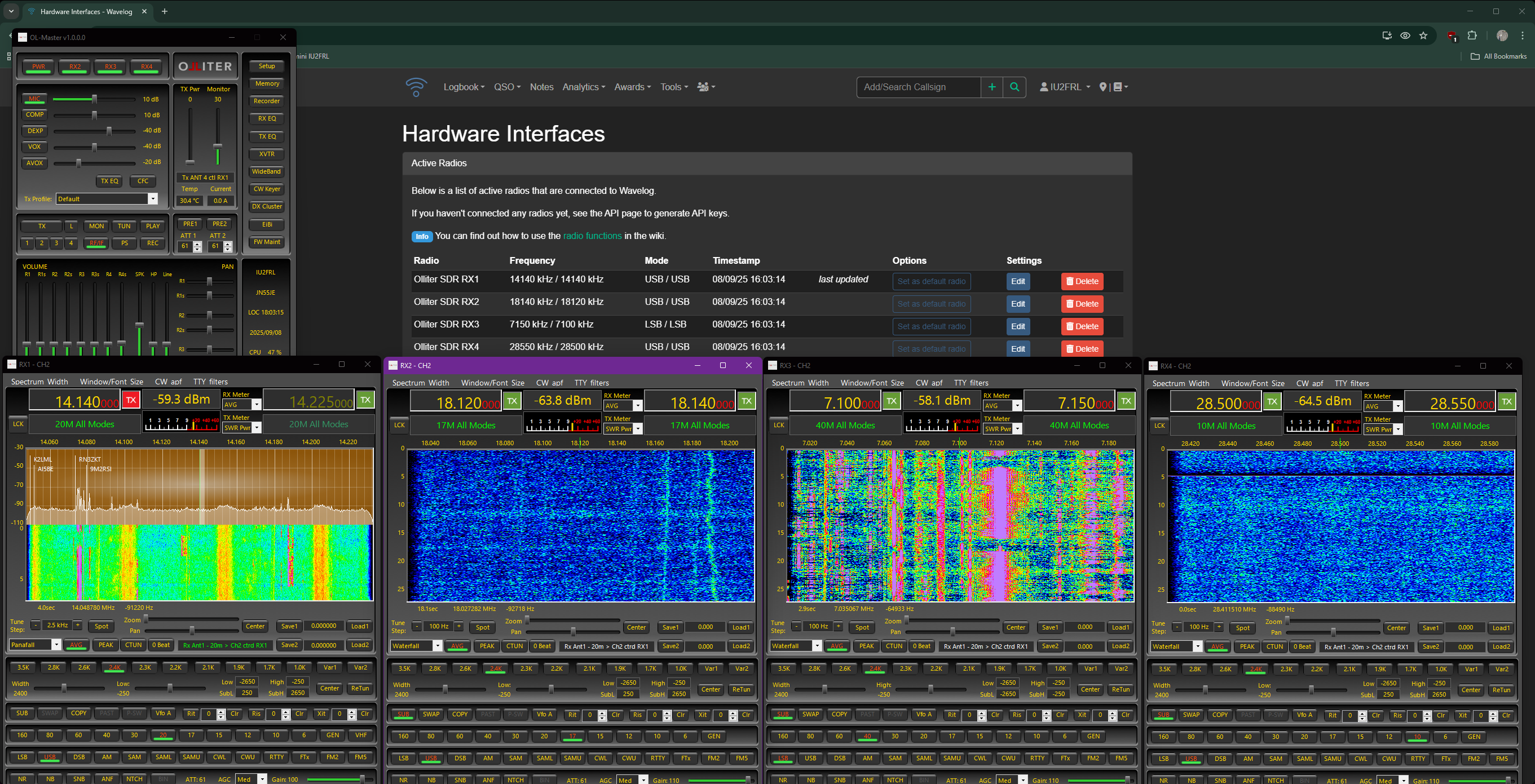
Wavelog is an open-source, web-based and self-hosted logging software with extensive features to interface with external services like QSL management and live or contest logging.
Note
The Wavelog integration feature requires OL-Master version 1.1.0.13 or later.
In the Setup > COM > Wavelog section, you can configure the integration with Wavelog, by providing the few required parameters.
Wavelog URL: The base URL of the Wavelog instance (e.g.,https://wavelog.example.com/).- No additional paths should be added, just the base URL of the Wavelog instance as indicated in the API key page of the Wavelog software
API Key: An API key for the user account in Wavelog where radio interfaces should be synched.- The API key must be configured with both read and write access
Radio name: An optional parameter used to distinguish between different radio interfaces.- If no radio name is provided, the default
Olliter SDRname will be used
- If no radio name is provided, the default
After configuring the Wavelog integration, you should click the Apply + Test button to verify the connection.
Tip
Refer to the Wavelog documentation for more details on how to configure APIs, radio interfaces and callbacks.
Radio interfaces
If this feature is enabled, the transceiver will periodically send updates to the Wavelog instance with the current state of the radio interfaces. This includes information such as frequency, mode, and other relevant parameters.
The update interval can be adjusted as needed.
To ensure proper functionality, you can access the Wavelog instance, look for the Hardware interfaces option in the user menu and make sure all four radio interfaces are listed and displaying correctly.
Tip
Using a faster refresh rate (smaller interval) might overload the Wavelog instance, the recommended minimum value is 1000 milliseconds.
Radio callbacks
If this feature is enabled, Wavelog will be able to control the transceiver remotely. This includes changing frequency and mode.
For this feature to work, please make sure to:
- Each transceiver should be assigned to a different TCP port in the
Setup > COM > Wavelogmenu of OL-Master- The default ports are 54321, 54322, 54323 and 54324 for RX1, RX2, RX3 and RX4 respectively
- Make sure the selected ports are not blocked by any firewall or already in use by other applications
- Each of the four transceivers that are automatically populated in the
Hardware interfacessection of Wavelog should be assigned to the corresponding callback address TCP port as configured in OL-Master- The address is always localhost, only the port should differ, for example:
- RX1:
http://127.0.0.1:54321 - RX2:
http://127.0.0.1:54322 - RX3:
http://127.0.0.1:54323 - RX4:
http://127.0.0.1:54324
- RX1:
- The address is always localhost, only the port should differ, for example:
N1MM
Note
The N1MM integration feature requires OL-Master version 1.1.0.26 or later.
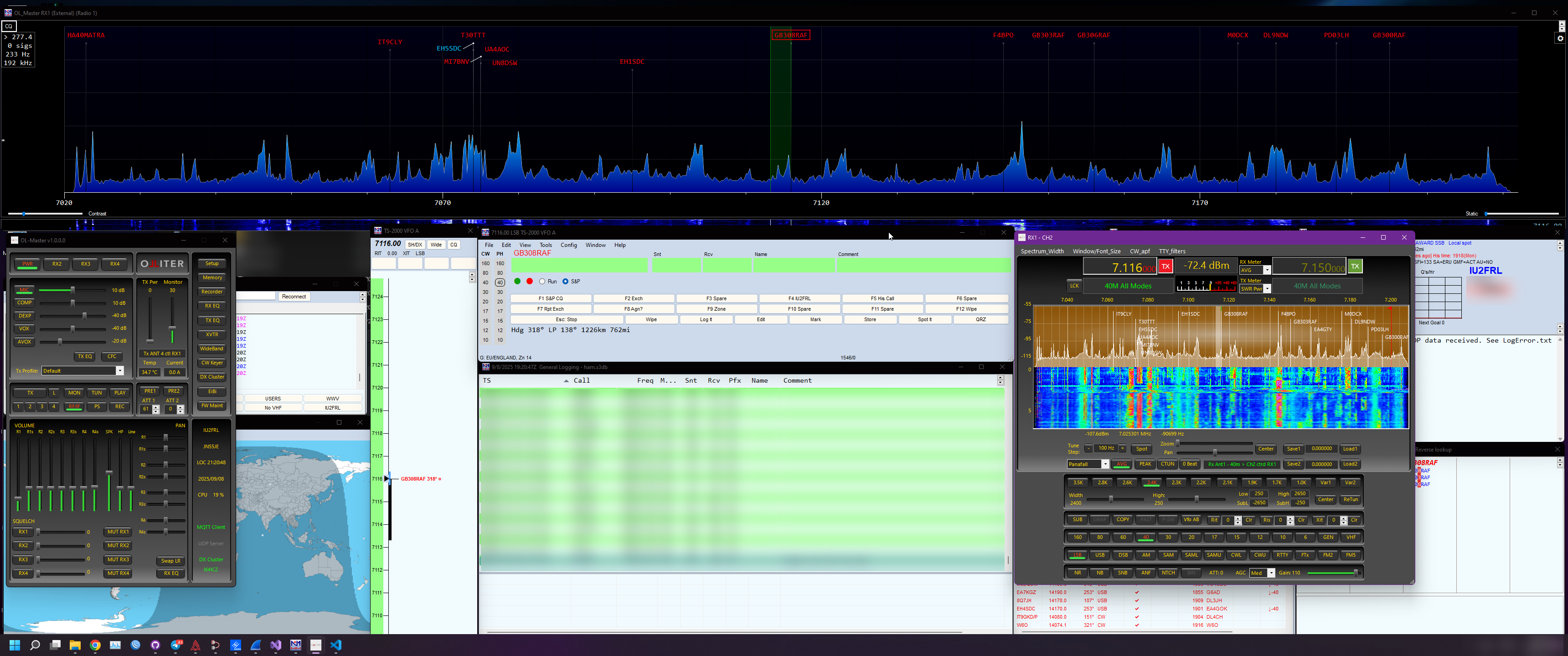
OL-Master is capable of sending panadapter data to N1MM logging software. This allows for seamless integration between the two applications, enabling users to take full advantage of the features offered by both.
OL-Master settings
Using the dedicated settings at Setup > COM > N1MM you can enable the spectrum forwarding to N1MM.
Tip
To ensure proper visualization of the spectrum data, the zoom level in the receiver window of OL-Master should be set to minimum (no zoom).
There are also additional settings that can be customized:
Target address: The IP address of the machine where N1MM is running. By default it is127.0.0.1.Target port: The port number on which N1MM is listening for incoming connections. By default it is12060.Send interval: The interval at which panadapter data is sent to N1MM. By default it is333 ms.- As per N1MM documentation, refresh should happen only 3-4 times per second.
Scaling factor: A scaling factor to apply to the panadapter data before sending it to N1MM. By default it is0.5.- Increasing this value will make the spectrum "taller", while decreasing this value will make it "shorter".
Spectrum offset: An offset to apply to the panadapter data before sending it to N1MM. By default it is120.- Increasing the value will shift the spectrum upwards, while decreasing the value will shift it downwards.
N1MM settings
In the N1MM waterfall window, click the "Settings" button (gear icon) to access the N1MM settings and then set:
Spectrum source: Set this toExternal (WB, Flex, etc).Source Options: Select which of the active receivers spectrum to display.Binary bins: Set this to the desired resolution of the spectrum.
RS-BA1 Server
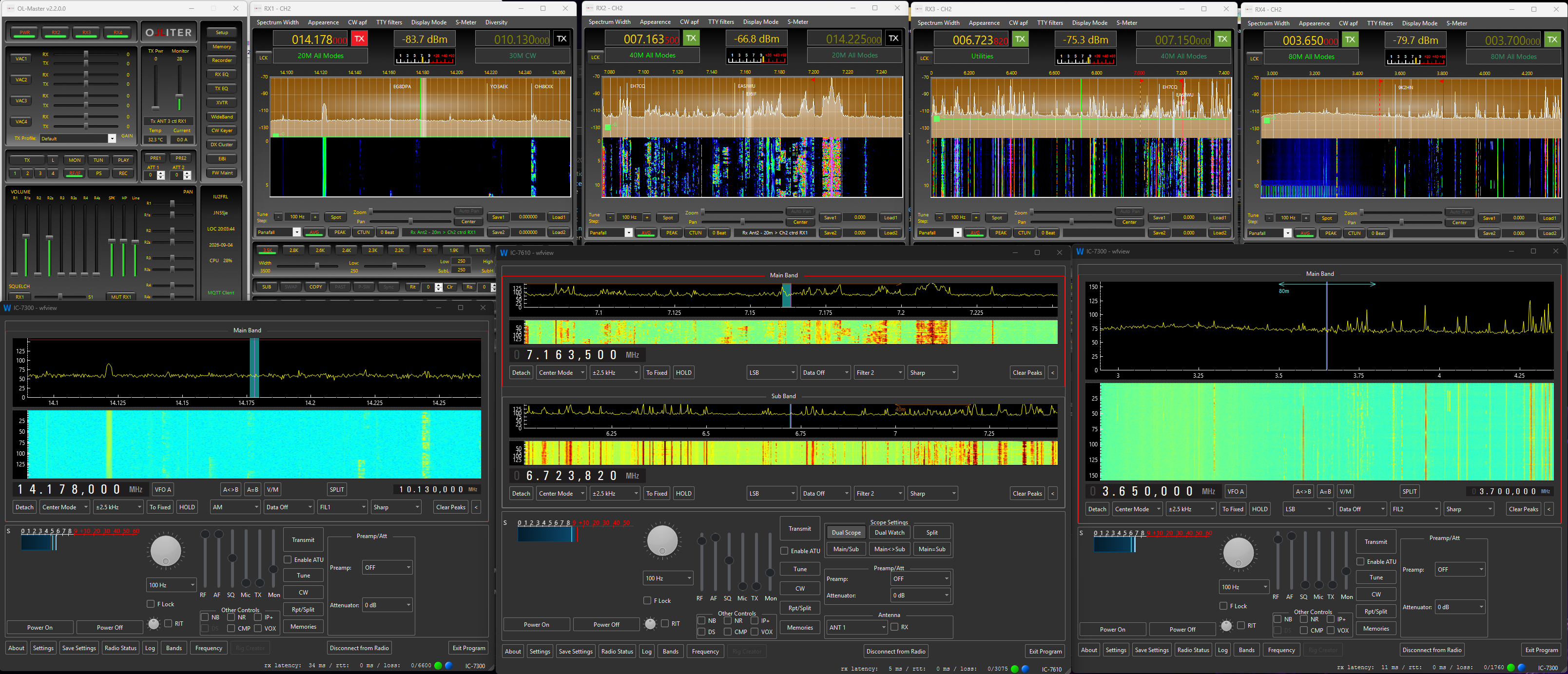
The RS-BA1 Server is a network service built into OL-Master that emulates an Icom transceiver over the LAN, letting remote clients such as wfview or the Icom RS-BA1 Remote Utility control the radio, receive live audio, and view the panadapter spectrum from another PC on the same network.
Note
The RS-BA1 server requires OL-Master version 2.2.0.19 or later.
The feature is configured in the Setup > COM > RS-BA1 section. It is disabled by default and must be explicitly enabled before it starts listening.
Licensing notes
Icom RS-BA1 is a proprietary protocol and is not documented by Icom. The RS-BA1 server in OL-Master is a custom implementation that has been tested with the official RS-BA1 Remote Utility and wfview. It may not be compatible with other clients.
Icom and the RS-BA1 Remote Utility are trademarks of Icom Inc. The RS-BA1 server in OL-Master is not affiliated with or endorsed by Icom.
wfview is an open-source project and is not affiliated with or endorsed by Olliter SAgl.
Enabling the server
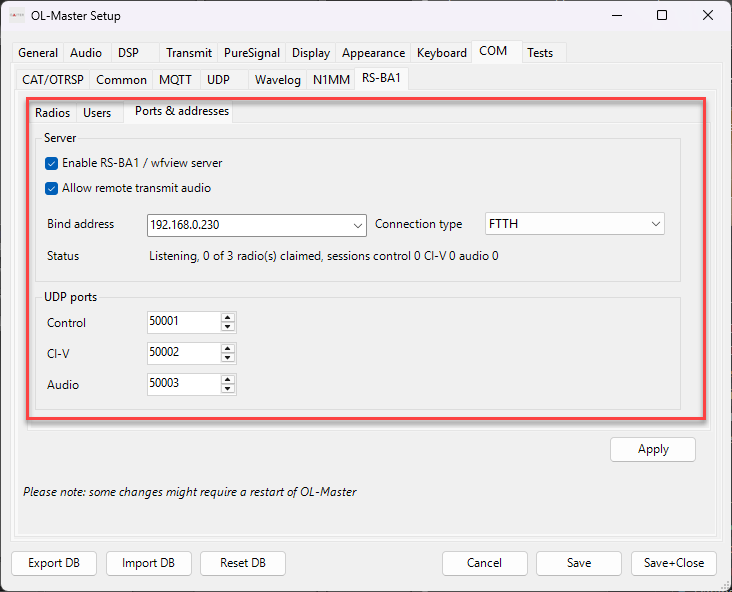
In the Ports & addresses sub-tab of the RS-BA1 settings, set the following:
Enable RS-BA1 server: Check this box to start the server. Unchecking it stops the server immediately.Bind address: The network interface the server listens on.127.0.0.1restricts access to the local machine only; use the machine's LAN IP (e.g.192.168.1.10) to allow remote clients.Control port: UDP port for the login, token, and capability exchange. Default:50001.CI-V port: UDP port for CI-V command traffic and spectrum data. Default:50002.Audio port: UDP port for receive and transmit audio. Default:50003.Access line: An optional label reported to the client. Leave as the default (FTTH) unless a specific client requires a different value.- This selection does not impact the actual network interface used; it is used only by the client to negotiate the correct network profile.
After configuring the ports and bind address, click Apply to start (or stop) the server. A status label shows whether the server is listening, stopped, or encountered an error.
Warning
If the bind address is set to a LAN IP rather than 127.0.0.1, a confirmation dialog warns that remote clients will be able to change frequency, mode, and transmit state.
Adding emulated radios
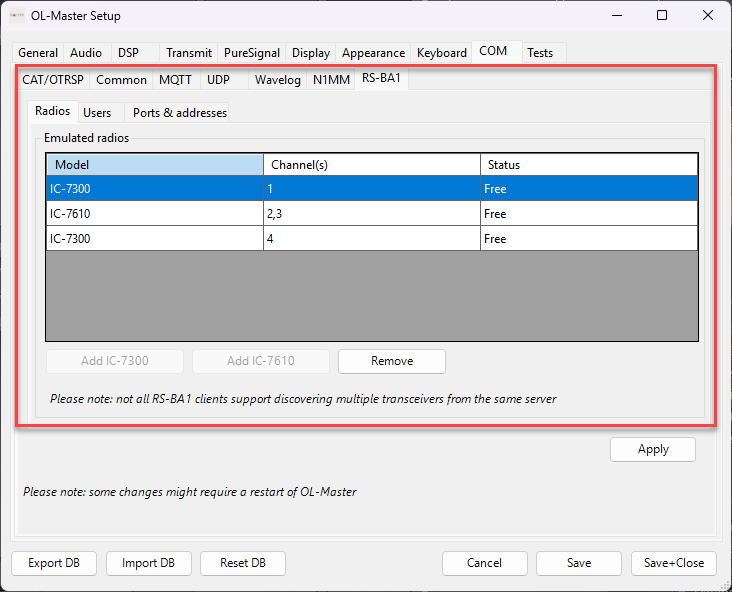
In the Radios sub-tab, build the list of transceivers the server will advertise. Each row represents one emulated radio that a remote client can connect to.
Add IC-7300: Adds a row emulating an Icom IC-7300. This profile consumes one OL-Master channel and presents two VFOs (MAIN and SUB) to the client.Add IC-7610: Adds a row emulating an Icom IC-7610. This profile consumes two adjacent OL-Master channels and presents one receiver per channel.Remove radio: Removes the currently selected row.
OL-Master has four channels. An IC-7300 row claims one channel; an IC-7610 row claims two. The Add buttons are disabled when no free channels remain. At most four radios can be configured. User can freely mix IC-7300 and IC-7610 rows, but the total channel count cannot exceed four.
Tip
The channels assigned to each row are fixed at configuration time. If channel 1 is assigned to an IC-7300 row, that client will always control OL-Master channel 1, regardless of which frequency or mode the local UI is currently using.
Configuring authentication
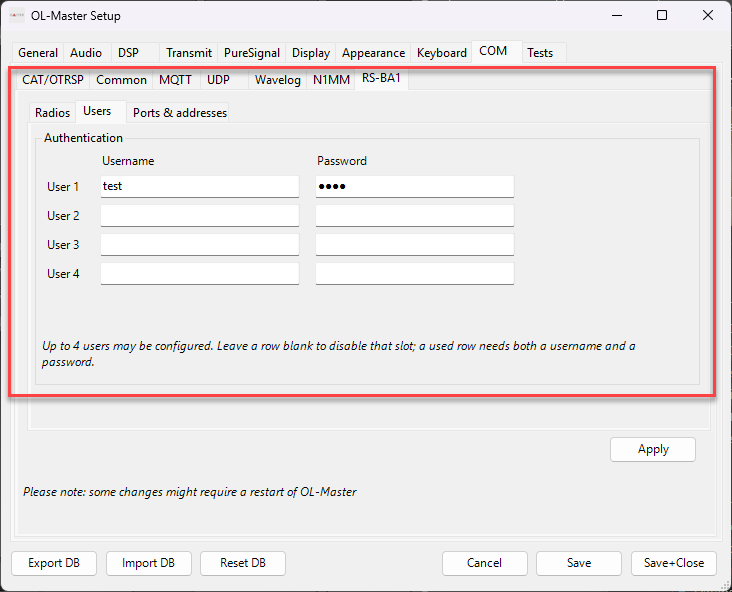
In the Users sub-tab, define up to four username and password pairs that remote clients must present to log in. The Icom LAN protocol has no anonymous mode, so at least one fully configured pair is required before the server will start.
| User | Username | Password |
|---|---|---|
| 1 | First credential pair | |
| 2 | Second credential pair | |
| 3 | Third credential pair | |
| 4 | Fourth credential pair |
Blank rows are ignored. Both the username and password must be filled in for a row to be treated as a valid credential; leaving one field empty while the other is filled is rejected as an invalid configuration.
Tip
Credentials are stored in the OL-Master configuration database and persist across restarts. To change them, edit the fields and click Apply.
Remote transmit audio
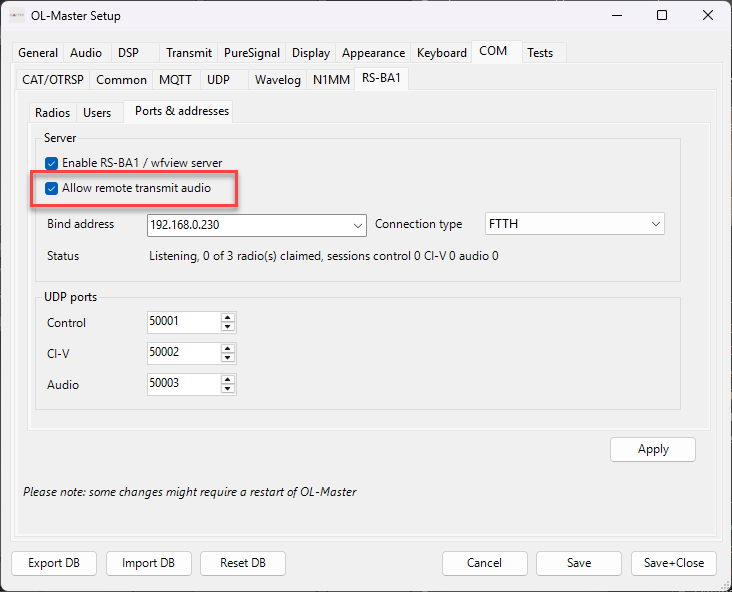
By default, if the RS-BA1 server is running and the remote transmit audio setting is enabled, authenticated clients that have claimed a radio are permitted to stream their microphone audio back to OL-Master, which injects it into the transmitter in place of the local microphone or VAC source.
Tip
The remote TX audio path is independent of the existing loopback UDP transmit audio feature.
When the setting is off, the server advertises no transmit audio capability, and remote clients will not see a microphone option in their UI. When on, the client can select its local microphone and key it up through the standard CI-V PTT command.
Transmit audio ownership is exclusive: if multiple clients are connected, only the one currently holding the radio's stream can inject audio. When the client disconnects, the source returns to the local microphone or VAC within 250 ms.
When a remote client toggles the PTT, the server automatically switches the audio source to the remote stream. When the client releases PTT, the server switches back to the local source.
Connecting with wfview
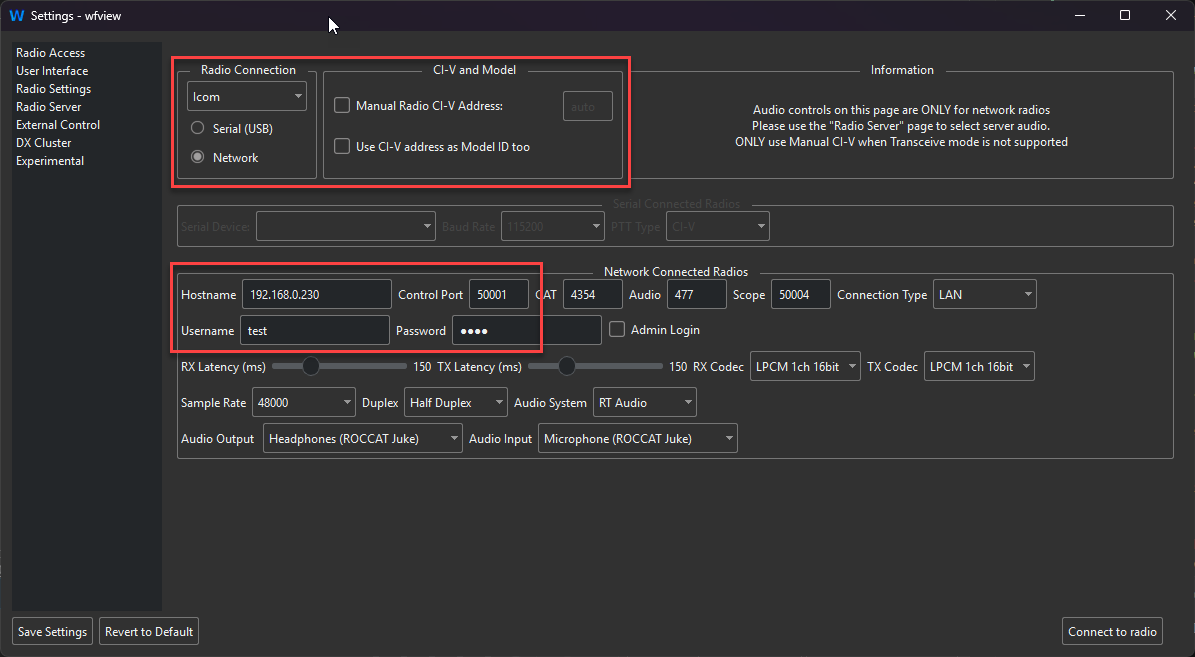
Once the OL-Master RS-BA1 server is running, configure wfview on the remote machine:
- Open wfview's Settings > Radio Access section.
- Select Icom as the radio type.
- Select LAN as the connection type.
- Set the Hostname to the OL-Master bind address (e.g.
192.168.1.10). - Set the Port to the OL-Master control port (default:
50001). - Enter the username and password configured in the OL-Master RS-BA1 Users tab.
- Click Connect.
wfview will authenticate, receive the radio capability list, and display each emulated transceiver row from the OL-Master Setup grid. Select the desired radio from the list. wfview opens its own CI-V and audio sockets, completes the handshake, and begins receiving live audio and spectrum data.
Tip
wfview's default Icom LAN preferences use ports 50001, 50002, and 50003, which match OL-Master's defaults. If you changed the ports in OL-Master Setup, enter the same values in wfview's Icom LAN settings.
Spectrum display
The server converts OL-Master panadapter data into Icom CI-V scope frames sent over the CI-V UDP socket.
The spectrum update rate is 10 frames per second, driven by the server's maintenance sweep. The frame is gated on the session's scope state and the channel being powered on; if the client disables the scope, no spectrum frames are sent.
Frequency labels are derived from the receiver's current center frequency and display window, so zooming or panning the local panadapter moves the remote frequency labels to match.
RX audio
Receive audio is streamed as LPCM mono 16-bit at 48 kHz, matching wfview's default codec. The server also supports 24, 16, 12, and 8 kHz by decimating the native 48 kHz block; these are the only rates that divide evenly into the 960-sample (20 ms) block.
Each audio block is split into two UDP datagrams at 1364 payload bytes, producing the 1388-byte and 580-byte packet sizes wfview expects at 48 kHz. Audio packets maintain their own independent big-endian sequence counter, separate from the tracked control packet sequence.
The IC-7610 profile sends stereo audio by summing the MAIN and SUB receiver channels into left and right streams respectively. The IC-7300 profile sends mono audio.
Troubleshooting
wfview cannot connect to the OL-Master server.
- Ensure the RS-BA1 server is enabled in OL-Master Setup and the status label shows Listening.
- Check that the wfview host and port match the OL-Master bind address and control port.
- Verify that the firewall on the OL-Master machine allows inbound UDP traffic on the control, CI-V, and audio ports.
- Confirm that the username and password in wfview match a configured credential pair.
Audio plays but drops out after about a minute.
- This is usually a token renewal failure. Check the OL-Master log for RS-BA1 errors around the time of the disconnect.
- Ensure the OL-Master machine clock is stable; the ping timestamp mechanism depends on monotonic time.
Spectrum does not appear in wfview.
- Make sure the scope is enabled in wfview (usually a button or menu toggle in the spectrum widget).
- Verify that the channel assigned to the emulated radio has power on; spectrum is not sent for powered-down receivers.
- Check that the
Data outputoption is enabled in wfview's scope settings.
Remote transmit audio does not work.
- Confirm that the Allow remote transmit audio checkbox is checked in OL-Master Setup and the server was restarted after changing it.
- Check that the client has claimed a radio (the Setup grid should show Streaming or Transmitting for that row).
- The remote operator must key the PTT from wfview; audio alone does not transmit.
My generic RS-BA1 client does not work with OL-Master.
- Not all RS-BA1 clients are compatible with multiple transceiver being exposed on the same server. The OL-Master RS-BA1 server has been tested with the official Icom RS-BA1 Remote Utility and wfview, but other clients may not work correctly. If the client does not support multiple transceivers, please delete all but one row in the OL-Master RS-BA1 Setup grid and try again.
Which clients are compatible with the OL-Master RS-BA1 server?
- The official Icom RS-BA1 Remote Utility (Windows - tested version 2.81)
- wfview (Windows - tested version 2.26)
- SDR-Control for Icom (iPad - tested version 1.9.131)